Kindle Book Formatting: Requirements and Essential Tools
Guides
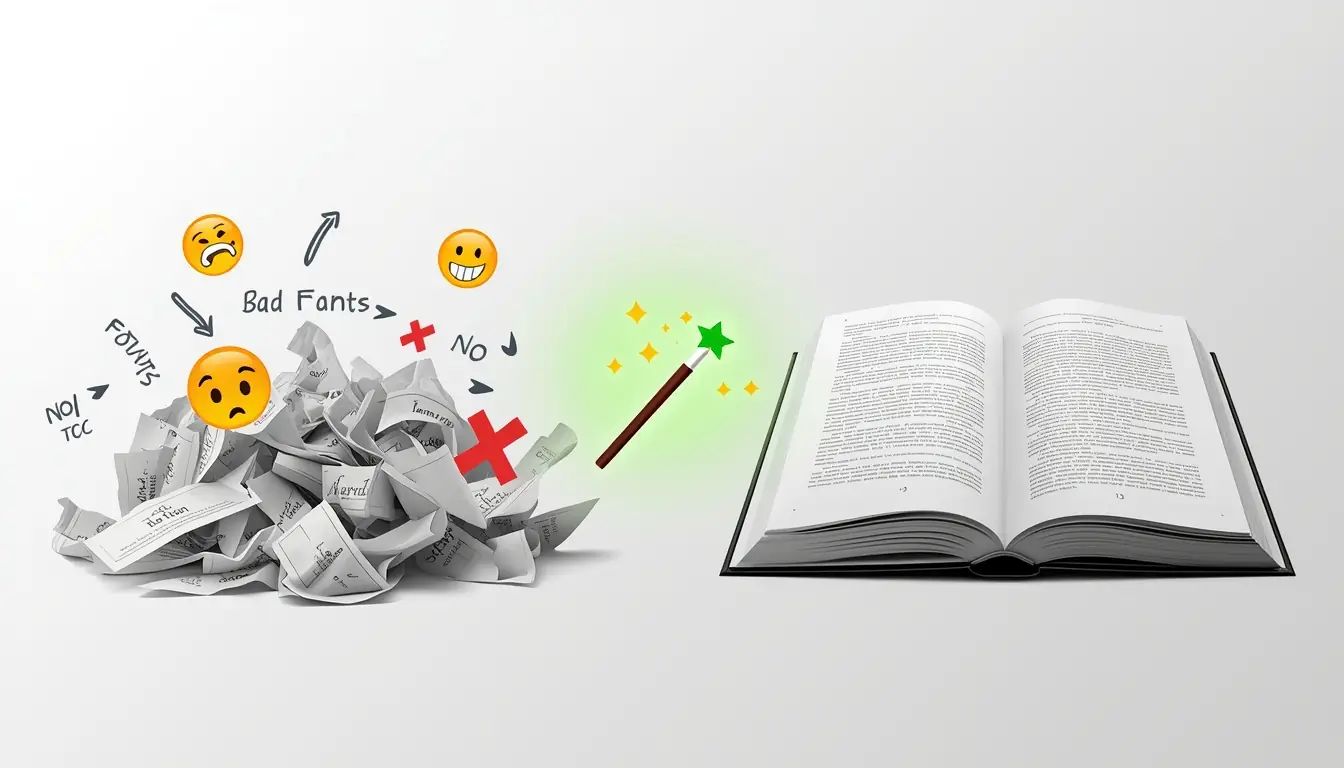
Formatting Your Book for Amazon Kindle: File Requirements, Supported Formats, and the Best KDP Tools for 2025
Proper formatting is a non-negotiable part of publishing on Amazon KDP. A poorly prepared manuscript can lead to upload rejections, display issues across Kindle devices, and negative reader feedback.
In this guide, we’ll walk through Amazon’s technical guidelines, approved file types, and the most effective tools for preparing your manuscript. By following these steps, you’ll be able to publish a polished, professional-looking book that meets KDP standards.
Amazon KDP eBook Requirements 2025: Format Standards & File Specifications
Amazon has specific requirements for Kindle eBook files.
Supported file formats
EPUB is the recommended format. It's a universal e-book standard with responsive layout support.
DOCX is a Microsoft Word format. Amazon automatically converts it to Kindle format. Suitable for simple text books.
KPF is the Kindle Create format. It's created using Amazon's free software. It's ideal for complex formatting.
DOC, HTML, RTF - supported, but not recommended due to possible conversion issues.
MOBI - no longer supported since March 2025.
Content requirements
A table of contents is required for books longer than 10 pages. It must contain active links to the chapters.
The title page contains the title of the book and the author's name.
Fonts - Use standard fonts (Times New Roman, Arial, Georgia). Exotic fonts may not display.
Images - JPEG or PNG format, minimum resolution 300 DPI, file size up to 5 MB.
What to avoid
Page numbers are not used in e-books. Kindle automatically adapts the text to the screen size.
Hard line breaks - Use only to separate paragraphs or chapters.
Complex tables are not displayed correctly on small screens.
Headers and footers are not supported in responsive layout.
Print Book Preparation: Paperback & Hardcover PDF Standards
Printed books have additional technical requirements.
File format
PDF is the only accepted format for printed books. The file must be print-ready with the correct dimensions and margins.
Book dimensions
Amazon supports a variety of sizes. Popular options include:
6 x 9 inches (15.24 x 22.86 cm) is the standard size for non-fiction.
5.5 x 8.5 inches - compact format.
5 x 8 inches - for fiction.
8.5 x 11 inches - for workbooks and sketchbooks.
Field requirements
The inner margin (at the spine) should be larger than the outer margin for ease of reading. The size depends on the number of pages:
Up to 150 pages - minimum 0.375 inches.
151-400 pages - minimum 0.5 inches.
401-600 pages - minimum 0.75 inches.
Outside margins are at least 0.25 inches on all sides.
Requirements for the cover of a printed book
The cover includes the front, spine and back in one file.
Spine size is calculated using the formula: number of pages x paper thickness. Amazon provides a calculator and templates.
Resolution: minimum 300 DPI. Format: PDF.
Formatting Tools Comparison: Free vs Professional Solutions
Kindle Create is a free tool from Amazon.
Kindle Create is Amazon's official manuscript preparation program. It's free to download from the Amazon website.
Possibilities:
Import DOCX and PDF files.
Automatic formatting of chapters.
Adding a table of contents.
Preview on different devices.
Export to KPF format for Kindle and PDF for printing.
Advantages: free, officially supported, creates an optimal format.
Limitations: Basic design capabilities, not suitable for complex layout.
Canva — for low-content books
Canva is an online editor for creating low-content book interiors.
Possibilities:
Page templates for planners, magazines, coloring books.
Drag-and-drop interface.
Export to PDF for printing.
Advantages: intuitive interface, many templates, free version.
Limitations: Not suitable for large text books.
Vellum — a professional solution for Mac
Vellum is a premium book formatting program. macOS only.
Possibilities:
Professional design styles.
Simultaneous export for all platforms.
Creation of printed and electronic versions.
Price: from $199 for e-books, $249 for the full version.
Advantages: professional results, time saving.
Limitations: High cost, Mac only.
Atticus - alternative to Vellum
Atticus is a cross-platform program that runs on Windows, Mac, and in the browser.
Possibilities:
Writing and formatting in one program.
Professional templates.
Export to EPUB and PDF.
Cost: $147 one-time.
Advantages: Works on all platforms, includes writing features.
Step-by-Step Formatting: Kindle Create Workflow
Step 1: Preparing the source file
Open the manuscript in Word or Google Docs. Apply heading styles: Heading 1 for chapter titles, Heading 2 for subheadings.
Check paragraph formatting. Remove extra spaces and empty lines. Save the file in DOCX format.
Step 2: Import into Kindle Create
Launch Kindle Create and select the book type: Reflowable for text books or Print Replica for fixed-layout books.
Import the DOCX file. The program will automatically identify chapters by headings.
Step 3: Setting up Chapters
Check your chapter layout. Add or remove chapter breaks if necessary.
Choose a heading style from the available templates. Choose whether to start a chapter on a new page or continue it.
Step 4: Create a Table of Contents
Kindle Create automatically generates an interactive table of contents based on your headings. Check that the links are correct.
Step 5: Preview and Export
Use the built-in preview to check the display on your phone, tablet, and Kindle.
Export the book in KPF format for uploading to KDP. For a printed version, export as PDF.
Common Formatting Errors & Quality Control
Problems with indents
Don't use spaces or tabs for paragraph indents. Adjust the first-line indent using paragraph formatting in Word (0.5 inches is the standard).
Incorrect images
Images that are too low resolution will appear blurry. Use a minimum of 300 DPI for print and 72-150 DPI for ebooks.
Excessively large files slow down book loading. Optimize the file size without losing quality.
Problems with fonts
Non-standard fonts may not display on readers' devices. Use standard fonts or embed the fonts in the EPUB file.
Pre-Publication Checklist: Kindle Previewer Verification
Kindle Previewer
Download the free Kindle Previewer app from Amazon. Open the exported file and check the display on all devices.
Please note:
Correctness of the table of contents.
Displaying images.
Word hyphenation.
Formatting tables and lists.
Properly formatting a book for Kindle is a technical but doable process. Use the free Kindle Create for most tasks. For professional results, consider Vellum or Atticus.
Key rules:
Use recommended formats (EPUB, DOCX, KPF).
Apply heading styles to automatically create a table of contents.
Avoid page numbers and headers and footers.
Check your book in Kindle Previewer before publishing.
For printed books, consider the size of the margins and spine.
Good formatting improves the reader experience and reduces negative reviews.
Ready for Personalized Guidance?
Get expert mentoring tailored to your specific publishing goals.